
Equipment and set up
BFBS Direct-to-Home (DTH) Satellite TV Equipment
Below is what you will be issued with to enable you to watch BFBS satellite TV.
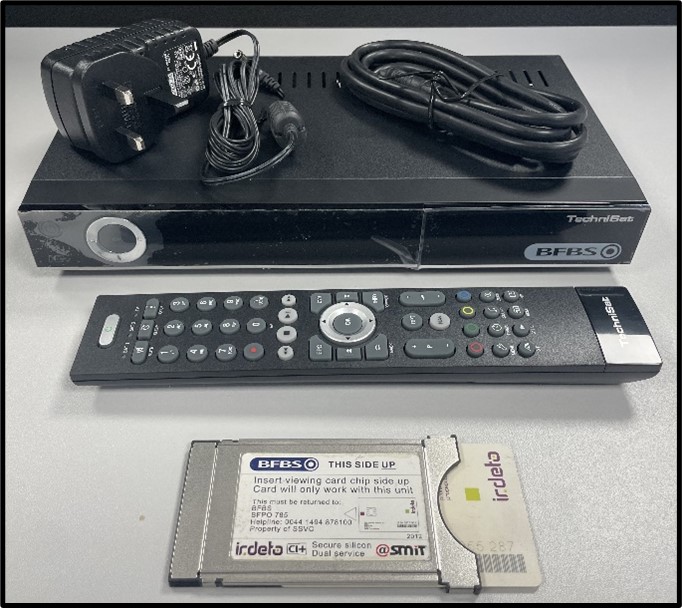
- BFBS Technisat Satellite Receiver Set Top Box (STB)
- Remote control for the STB.
- Power Supply for the STB.
- HDMI cable to connect the STB to your TV.
- BFBS Conditional Access Module (CAM) and Conditional Access Card (CAC).
BATUK Satellite Dish
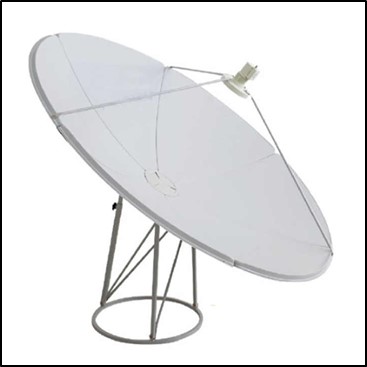
The satellite dish must have an unobstructed view of the sky towards the satellite.
If the satellite dish is overgrown by foliage or vegetation the satellite signal will not be received.
The satellite cable from the LNB to the satellite set top box should not be cut, stretched, kinked, etc.
The satellite dish ‘look angle’ to the satellite is critical, and even small movements in elevation or azimuth with severely affect the ability of the system to show the BFBS TV services.
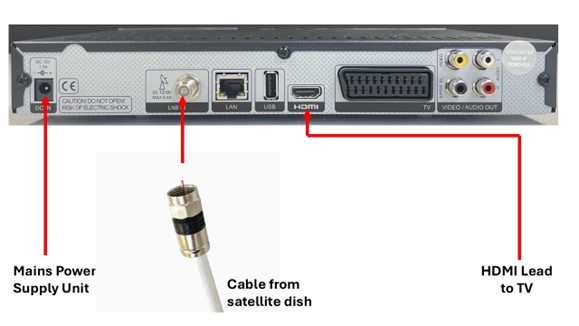
Connecting Up the BFBS STB
Setting the TV to the HDMI Input
To view the BFBS TV services, the TV needs to be set to the HDMI input that the STB is connected to.
There might be a button on the remote control to choose what the TV is ‘looking’ at, and it will be called, “Source”, “Input” or “AV”, or might just be a symbol which is a square with an arrow pointing into it.
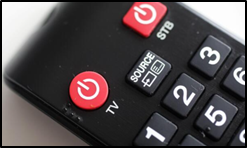
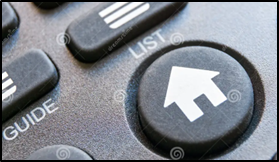
Or you might have go to into the TV menu to make this choice via the HOME Button, and once in the menu screen choose which AV or source to select.
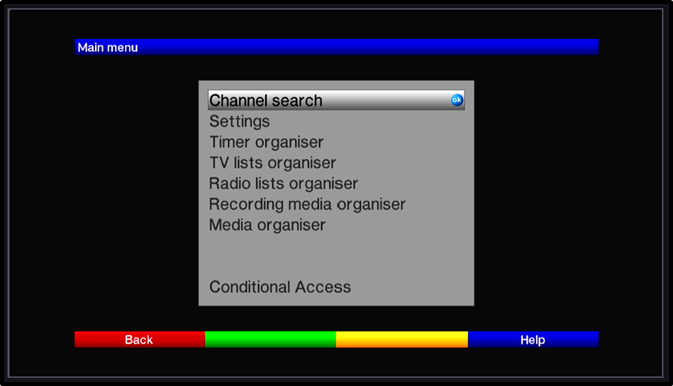
You should now be able to watch BFBS TV. A good way to check that you are connected to the BFBS STB is to press the menu button and see if the STB menu is displayed
Troubleshooting
No Signal
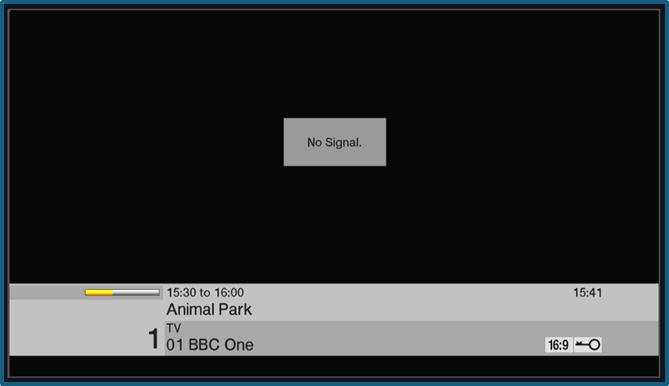
If you see this message, please check the satellite connections and the satellite dish.
If your BFBS satellite TV has been working, please think about what might have happened or changed recently? Has there been bad weather, have contractors been working in the garden, has the dish been damaged or the cable been cut and disconnected.
If this is the first time installing the STB please check the cable that you think is the satellite cable does actually go to the satellite dish. You’d be surprised how often this is the problem.
If all of that seems OK, the next step is to check the satellite receiver for correct settings.
Press the Menu Button, then highlight “Channel search” and press OK
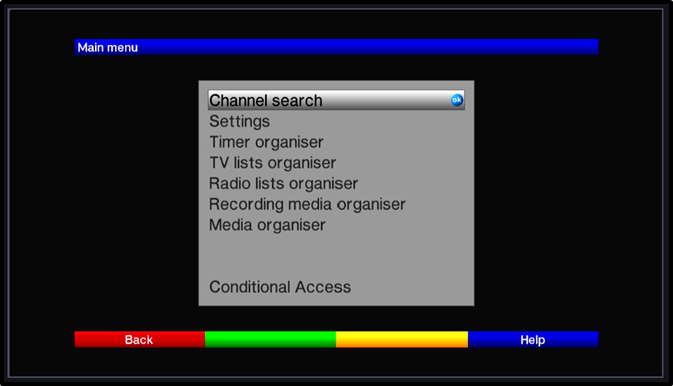
Then highlight “Transponder” and press OK
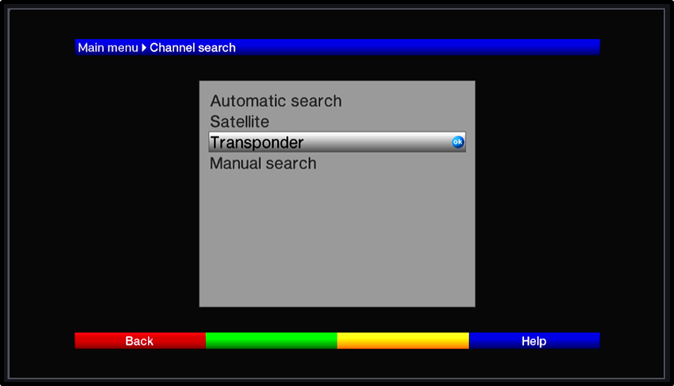
The screen below shows the setting that the BFBS STB needs to be set to in order to receive the BFBS TV channels.
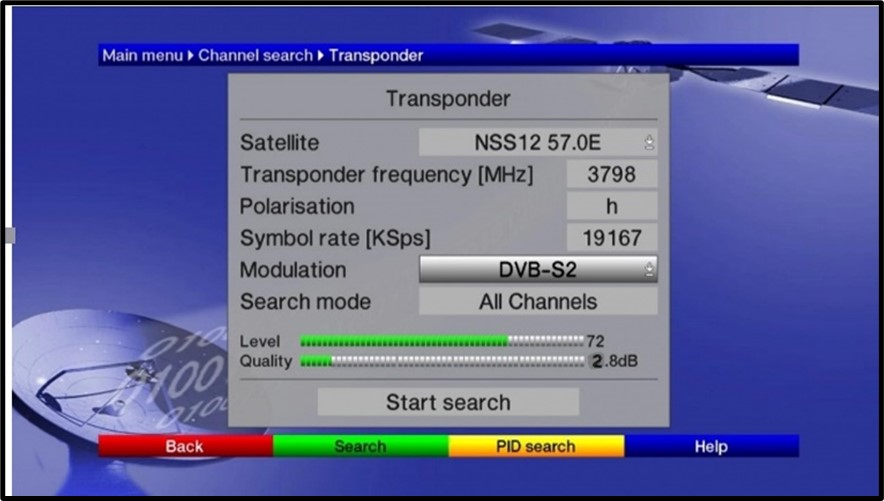
Satellite : NSS12 57.0E
Transponder Frequency (MHz): 3798
Polarisation: h
Symbol rate (kbps): 19167
Modulation: DVB-S2
Level & Quality
There needs to be a Level and more importantly a Quality measurement. The Quality measurement might be quite low, and that is acceptable, but if you have no Quality measurement at all then there is a problem.
No Level & No Quality
There could be problems with satellite dish pointing, the LNB, or the cable or connection to the STB. Please check the cable and the satellite dish.
Level but No Quality
The LNB and cable connections are probably OK, the satellite dish might have moved slightly and be picking up another satellite or the LNB polarisation might be wrong – try changing Polareisation from “h” to “v”, if there is then Quality measured then the LNB was mis-polarised.
Please contact BFBS Service Desk, [email protected] to report an issue via the button below.
Satellite signal Level & Quality, but no picture.
If your Transponder menu page, as below, is showing Level and Quality, then you should be receiving BFBS TV and Radio services.
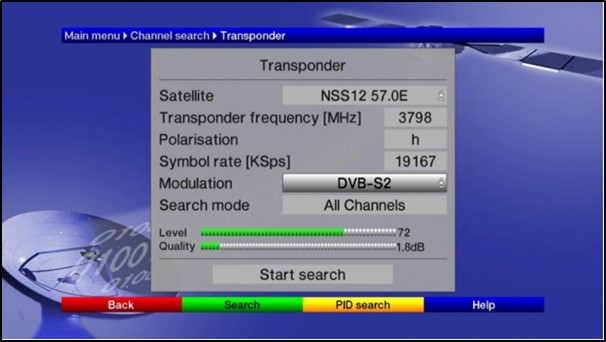
If you are not able to watch BFBS TV programs you might have a screen like the one below.
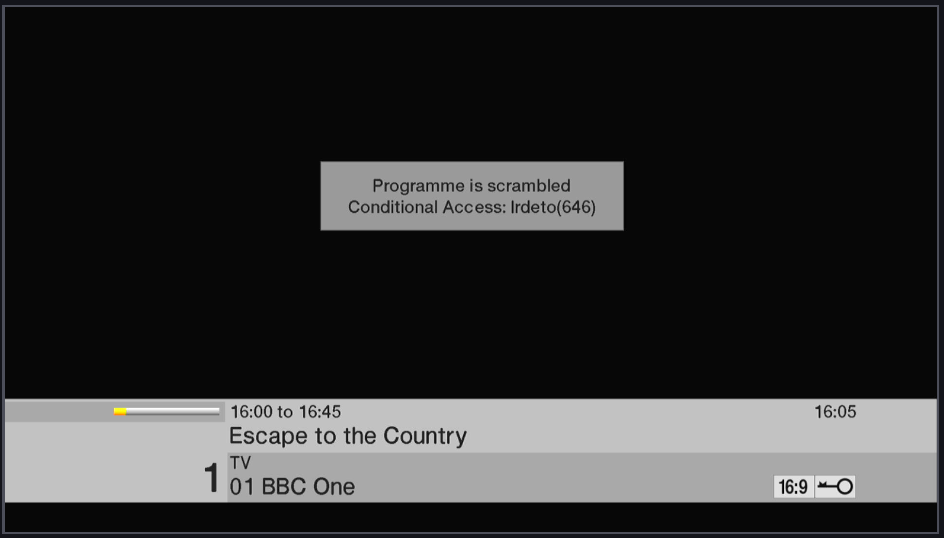
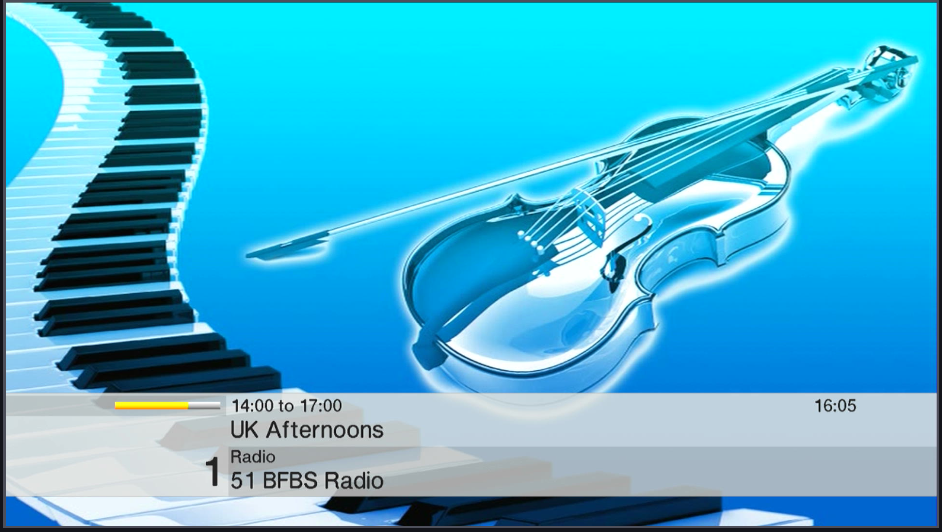
Press the “TV Radio” button bellow the ‘9’ on he remote control, you should see a screen like this. You should be able to hear the radio station audio. If you can then it poves that the satellite receiver STB is receiving a good signal, and the issue is to do with the conditional access CAM and CAC.
If the TV screen shows either of these error messages, then the conditional access CAM or conditional access card (CAC) is waiting for information.
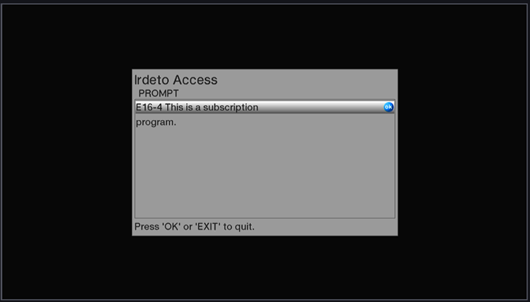
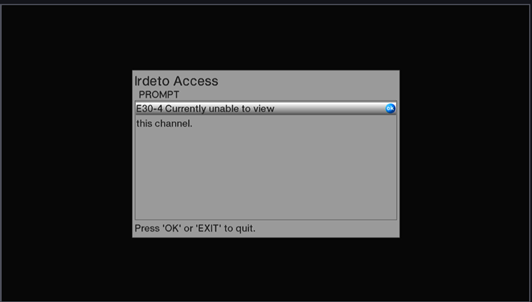
If the set top box has been turned off for some time, then the CAC will not have been receiving code updates and it can take a while for the CAC to receive the updates. Please be patient and the CAC should come on if left in a power on STB.
To speed up this process you can call the BFBS Service Desk (Mon-Fri, 06:00 to 20:00 UK) on +44 203 750 4567 or email [email protected]
The other thing to try is to eject the CAM module which can be found behind the flap on the right-hand-side of the STB.
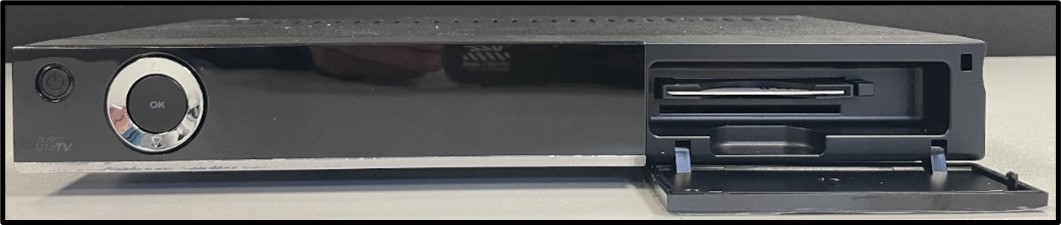
The eject button is just to the right of the CAM.
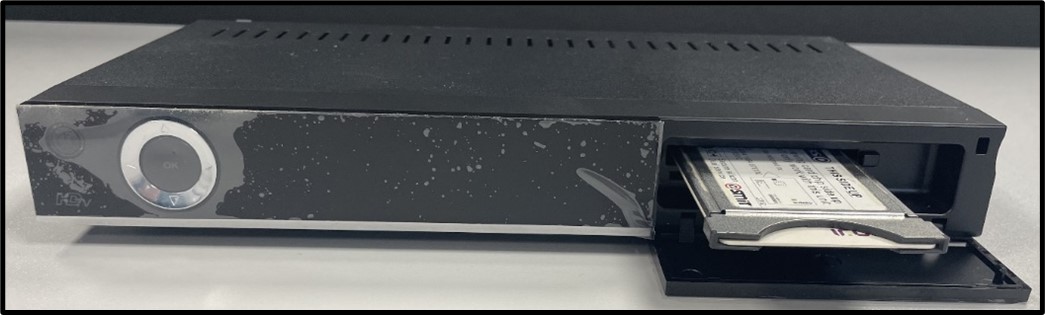
The photo above shows the correct way that the CAM should be fitted into the STB, and the photo below shows how the conditional access card (CAC) should be fitted into the CAM.
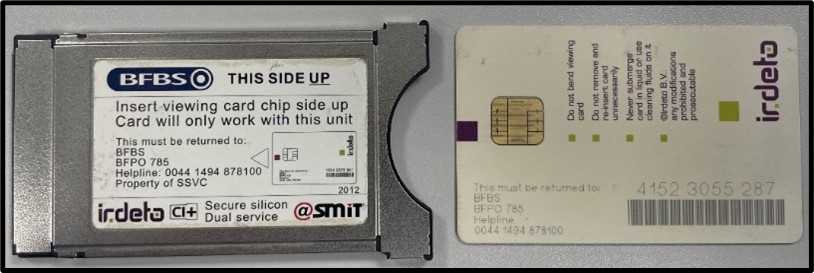
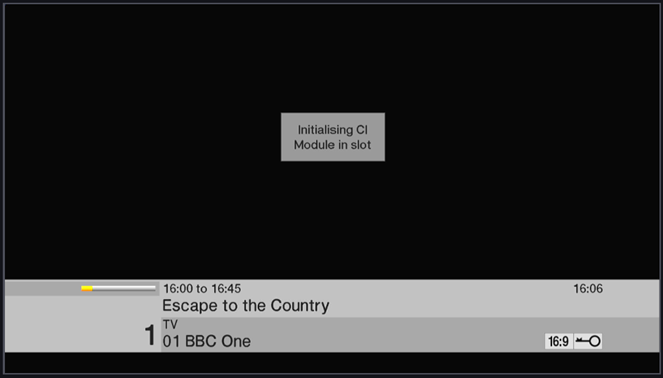
If this is all correct, re-insert the CAM and CAC and you should see the STB screen say “Initialising CI Module in slot”.
Now go to Menu, and choose Conditional Access.
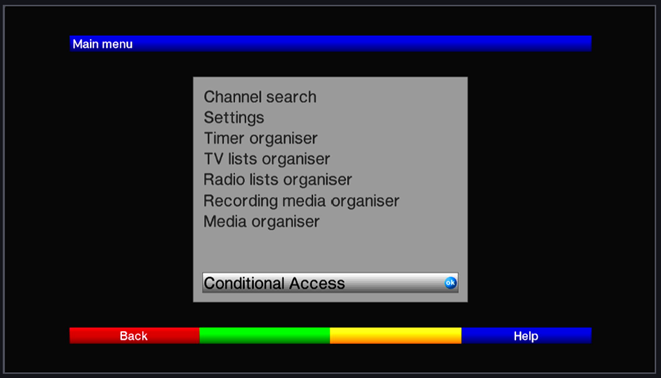
If the CAM and CAC is not in the set top box, not in properly or has not been recognised by the STB the STB will report “CI slot empty”. If everything is OK, the STB will recognise the CAM and CAC as being Irdeto products and report “Irdeto Access”.
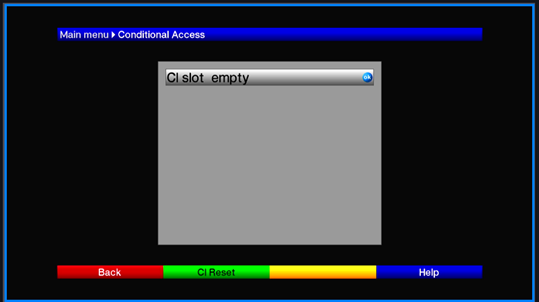
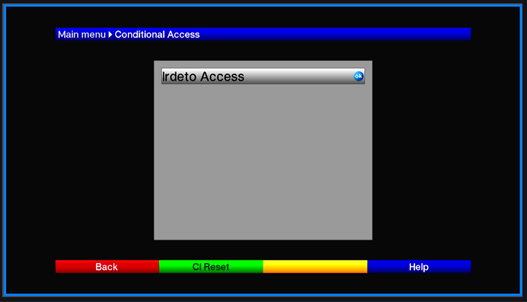
If you click OK on “Irdeto Access”, you will see this screen.
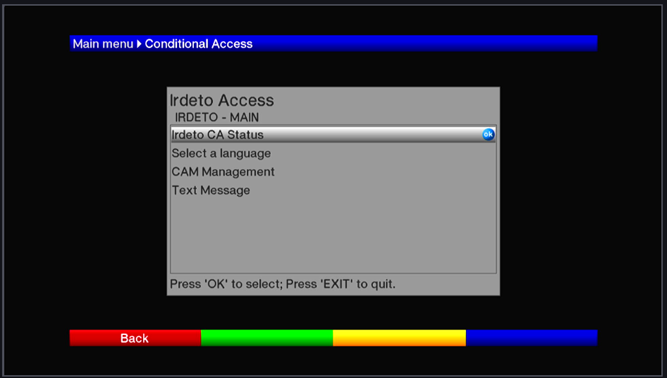
If you click OK on “Irdeto CA Status”, you will see the screen below.
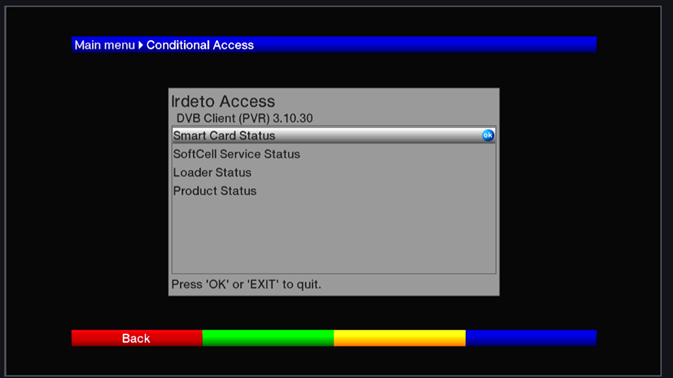
Click on “Smart Card Status”, you will see the screen below,
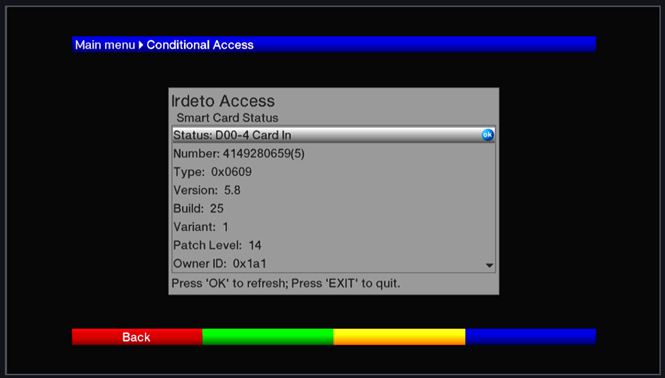
This screen shows you the conditional access 11 digit conditional access card number (CAC) – 41492806595 – the number in the brackets is needed as the final digit.
If you can see this then the CAM and CAC are inserted correctly, and the STB has initiated the CAM correctly.
If you cannot see the CAC number on this screen, then there is a problem with the CAM and the CAC. Please try the following,
- Eject the CAM and CAC.
- Turn the STB off at the wall plug – rather than putting it into ‘standby’ mode.
- Wait 1 minute.
- Turn the STB back on and once it has booted confirm that the satellite reception is good by listening to a Radio channel by pressing the ‘TV Radio’ button which is below the ‘9’ button.
- Now Press ‘TV Radio’ again to get back to the TV channels and re-insert the CAM and CAC. The STB should now go through an initialisation process.
If the STB is still not showing the TV services, please contact BFBS Service Desk, [email protected] via the button below.